How to Submit Your Podcast RSS Feed to Major Platforms
This guide will walk you through, step by step, how to submit your Podcast RSS Feed URL to several major platforms:
- YouTube / YouTube Music (formerly Google Podcasts)
- Spotify
- Apple Podcasts (in Apple Music)
- Amazon Music
- Castbox
It is written for complete beginners. Even if you have never used any podcast dashboard before, you can still follow this guide and get your show online.
1. Before You Start: Get Your RSS Feed URL (copy it from Blog Podcast Feed)
Before doing anything else, you need to have your Podcast RSS Feed URL from Blog Podcast Feed, which looks like this:
https://blogpodcastfeed.xrtotech.com/shop_podcast_xml/xxx.xml
Key point:
- On every platform, whenever you see “RSS Feed / RSS URL / Podcast RSS”, you will need to paste this URL there.
2. General Idea: The Process Is Almost the Same Everywhere
Most podcast platforms follow a very similar 3‑step process:
- Log in to the platform’s podcast creator dashboard;
- Look for an entry labeled something like:
- “Add a new show / Add podcast / Submit your show / Claim show / Claim ownership”;
- Open that page and paste your Podcast RSS Feed URL into the input box, then follow the on‑screen instructions to submit.
Below are the detailed steps for each platform.
3. Platform‑Specific Setup
1) YouTube / YouTube Music (formerly Google Podcasts)
Google has moved its podcast features into YouTube / YouTube Music. The latest official guide is here:
- Official help article:
https://support.google.com/youtube/answer/13973017
Simplified steps:
- Make sure you have a Google account (a Gmail account works);
- Open the link above in your browser to understand the overall process;
- Log in to YouTube Studio (YouTube’s creator dashboard);
- In the left‑hand menu, look for Podcasts or a similar entry;
- When creating a podcast, choose the option to add a podcast via RSS (if available);
- Paste your Podcast RSS Feed URL into the input field;
- Fill in or confirm the required information (show name, category, ownership confirmation, etc.);
- Submit and wait for YouTube to fetch and review your show.
Note:
The YouTube dashboard UI may vary by region and over time. If you don’t see exactly the same buttons, focus on keywords like “Podcast”, “RSS”, “Add show”.
2) Spotify (Spotify for Podcasters)
Spotify’s creator dashboard for podcasts is Spotify for Podcasters.
Steps:
- In your browser, search for and open “Spotify for Podcasters”;
- Log in with your Spotify account (sign up first if you don’t have one);
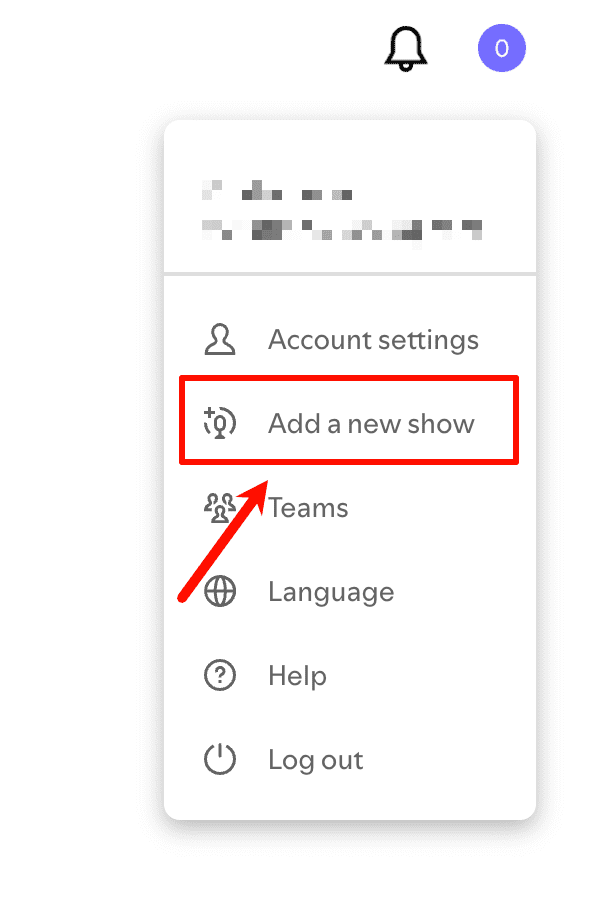
- After logging in, click “Add a new show”;
- When asked about the source, choose “Somewhere else” (meaning your show is hosted on another platform);
- You will see an input field asking for your Podcast RSS Feed. The path is roughly:
Add a new show → Somewhere else → Paste your Podcast RSS Feed in the Link field - Paste your RSS Feed URL;
- Follow the instructions to verify your email and confirm your show details;
- Submit and wait for Spotify to fetch and approve your show.
You can reuse your existing screenshot if needed (local path example from the Chinese file):
Important:
- Spotify usually sends a verification email to the contact email address in your RSS feed. Make sure that email address is valid and accessible.
- If you don’t see the email, check your spam folder or try again later.
3) Apple Podcasts (in Apple Music)
Apple’s creator platform for podcasts is Apple Podcasts Connect.
- Official help article:
https://podcasters.apple.com/support/897-submit-a-show
Steps:
- Prepare a working Apple ID;
- Use the link above to go to Apple Podcasts Connect;
- Log in with your Apple ID; if it’s your first time, you may need to accept terms and complete some account information;
- In the dashboard, find the entry labeled “Submit a new show” or a similar “add show” button;
- Choose the option to “Add a show with an RSS feed”;
- Paste your Podcast RSS Feed URL into the input box;
- Apple will read your RSS feed and display your show’s name, artwork, description, and other info;
- Check that everything looks correct and then submit your show for review.
Tips:
- Apple’s review can take from a few hours.
4) Amazon Music
Amazon provides a dedicated entry for podcast creators:
- Creator portal:
https://podcasters.amazon.com/
Steps:
- Log in with your Amazon account (sign up first if needed);
- In the dashboard, look for “Add or claim show”;
- In the corresponding field, enter your Podcast RSS Feed URL;
- Fill out the required information (region, language, ownership, etc.);
- Submit and wait for Amazon to fetch your RSS feed and review your show.
Common scenarios:
- If your show is already listed on Amazon Music, you might need to claim it instead of creating a new one.
- If Amazon says your RSS is not accessible, first try opening the RSS URL directly in your browser to ensure it loads correctly.
5) Castbox (castbox.fm)
Castbox is both a podcast app and a creator platform.
Steps:
- Open the Castbox website in your browser and log in (or sign up for an account);
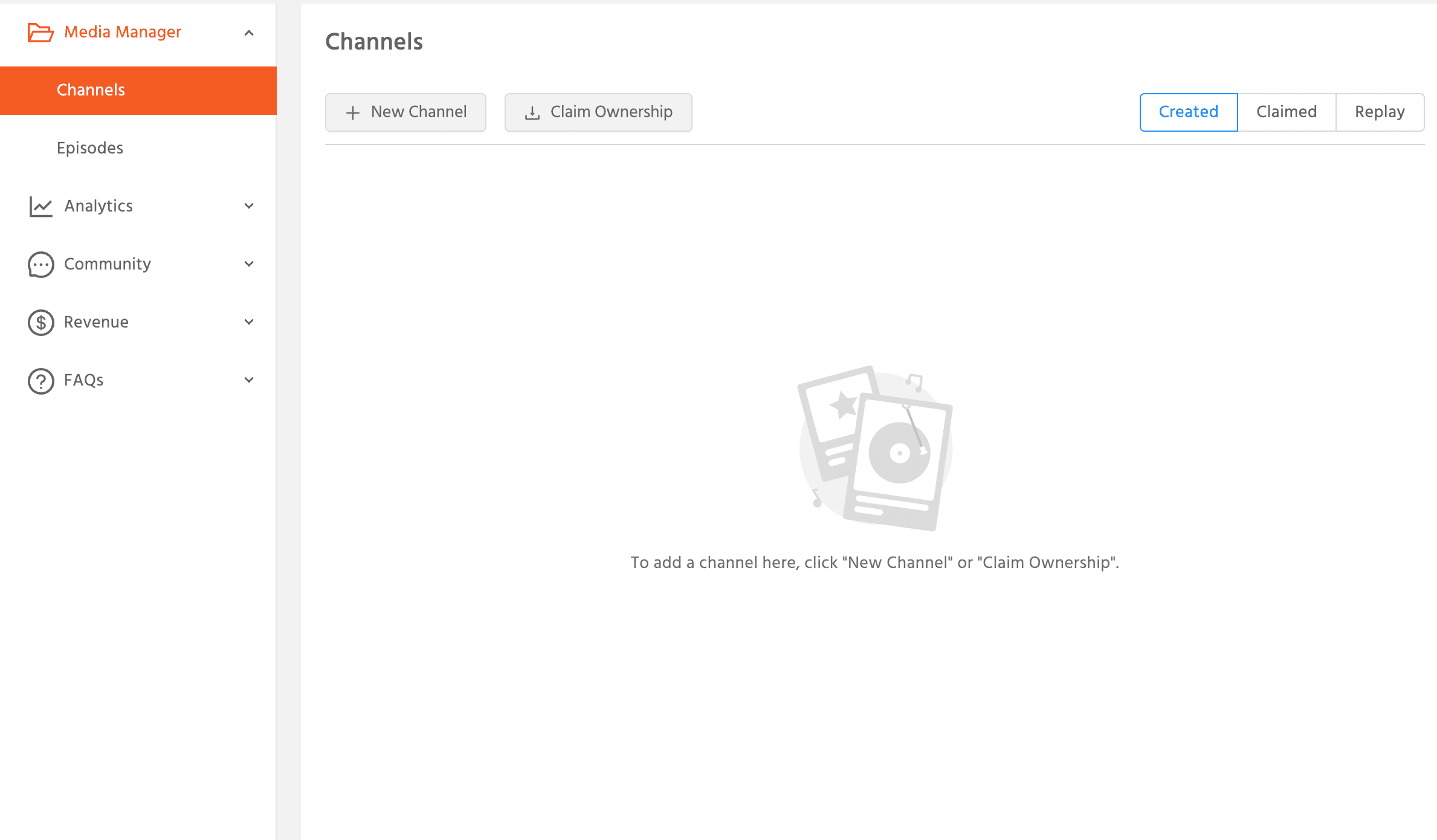
- After logging in, click on your profile avatar in the top‑right corner to enter Creator Studio;
- In Creator Studio, go through the following path:
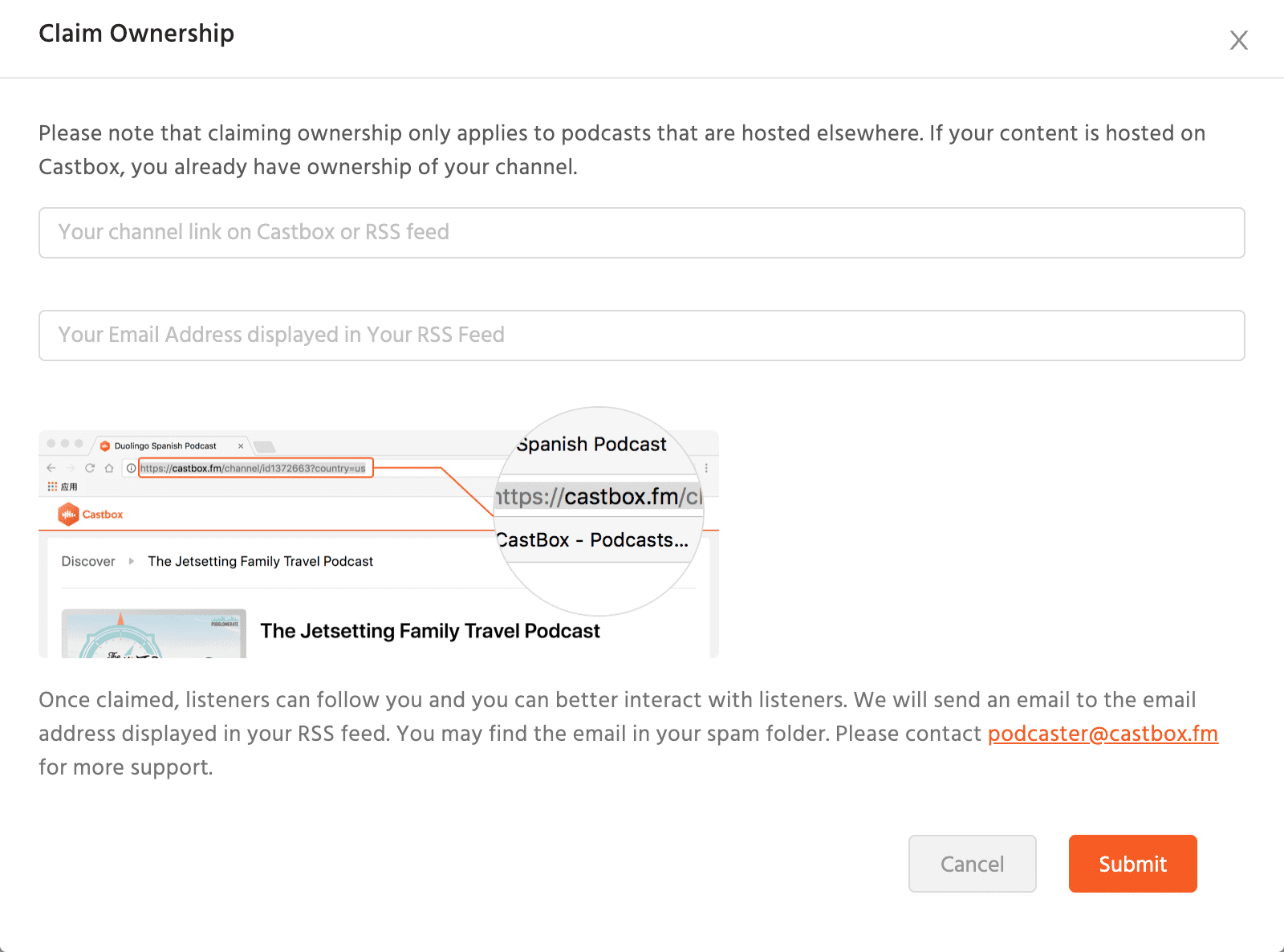
Creator Studio → Media Manager → Channels → Claim Ownership - On that page, fill in:
- Your Podcast RSS Feed URL;
- Your email address (for ownership verification).
You can reuse the existing images from your Chinese document if you like (local paths shown below as examples):
- Submit the form. Castbox will send a verification email to the address you provided;
- After verification and successful creation, you will see your show listed under Claimed (claimed shows):
Notes:
- If you see your show already on Castbox but you didn’t upload it yourself, it was likely auto‑imported by the platform. In that case, use “Claim Ownership” to claim the show.
- Once the show is claimed, you can manage its title, description, artwork, and other display settings in Castbox.
4. Other Regional Podcast Platforms: How to Import Your RSS Feed
- The core action is the same everywhere:
Take your Podcast RSS Feed URL and paste it into each platform’s “add / submit / claim show” page. - The high‑level pattern is very similar across platforms:
- Log in;
- Open the creator/dashboard area;
- Choose to add or claim a show;
- Paste your RSS URL and follow the prompts.